


Last updated on: November 19, 2025 3:24 am


WooCommerce is an outstanding e-commerce solution for WordPress. Its flexibility is a great advantage, but some default behaviors — especially around product ordering — can be surprising when a single product belongs to multiple categories. This article explains that problem clearly and shows how the Advanced Post Types Order plugin solves it by allowing per-category product ordering that won’t overwrite other category orders.
The problem: one order field for many contexts
In WordPress, a product’s order is commonly stored in a single field (menu_order). That works fine when each product belongs to only one category, but most stores use multiple categories (e.g., T-Shirts, Sale, New Arrivals). If a product appears in two or more categories and you reorder it in one, the system will write a single menu_order value — which effectively overwrites the order used in the other categories.
This leads to two frustrating scenarios for store owners:
- You set a special curated order for a category (e.g., seasonal highlights), but later reordering the same product in another category overwrites that curated list.
- You can’t create category-specific merchandising strategies without duplicating products or using complex workarounds.
What you need is a tool that stores and respects an independent sort list per taxonomy term.
The solution: Advanced Post Types Order (APTO)
Advanced Post Types Order was built to address this exact issue. Instead of using a single global order value, APTO lets you create and manage order lists per taxonomy term (for example, a specific product category). That means:
- Reordering products while editing Category A does not change the order you set for Category B.
- You can use manual drag-and-drop ordering in the WordPress admin for any taxonomy (product categories, product tags, or custom taxonomies).
- The plugin works with any custom post type, so the same benefits apply beyond products (posts, pages, custom content types).
This preserves curated lists, supports robust merchandising, and avoids the need to duplicate products across categories.
Quick walkthrough
- Choose the taxonomy and term: From the APTO admin panel select the taxonomy (e.g., Product categories) and then pick the specific category you want to sort.
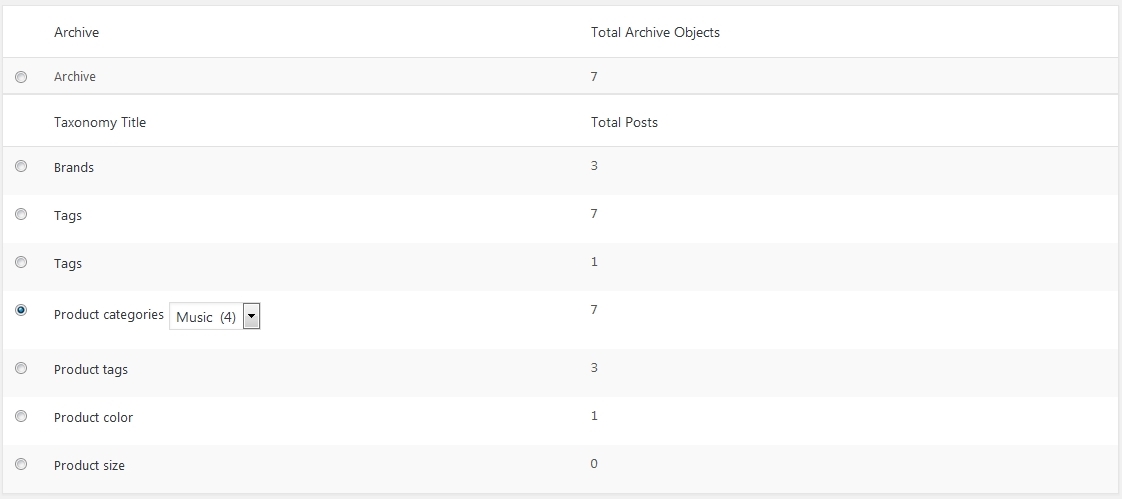
- Pick manual or automatic ordering: APTO supports manual drag-and-drop ordering as well as automatic rules (by name, ID, custom fields, stock status and more).
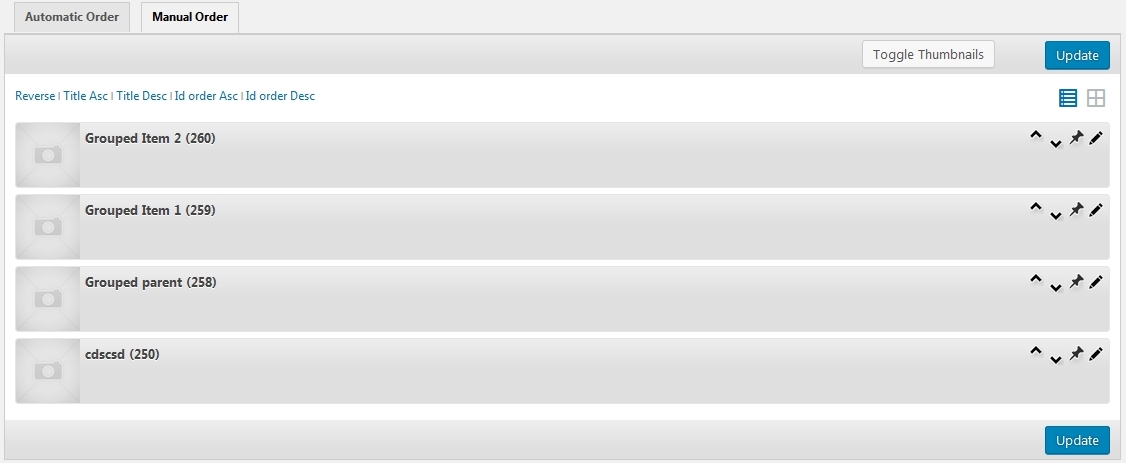
- Drag & drop to reorder: Switch to the Manual Order tab and drag items to the desired positions. APTO saves that order only for the selected category — other category orders remain unchanged.
- Grid view for visual sorting: If you prefer thumbnails, toggle the grid view—great when your products are visually driven (fashion, accessories, etc.).
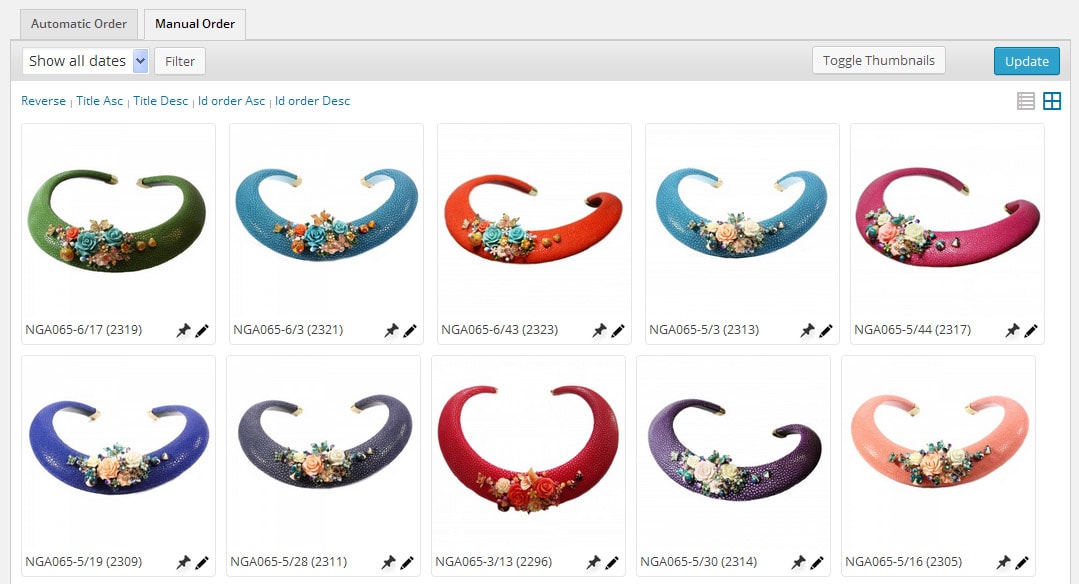
- Save and publish: Click Update to persist the order. The front-end respects the stored per-category order automatically.
Extra features that help stores
- Sticky (pinned) products: Pin important items to always appear first in a category, independent of other rules.
- Automatic fallback rules: Combine manual ordering with automatic rules so newly added products fall into a sensible position until you tailor them.
- Conditional application: Apply specific ordering lists to certain contexts (e.g., only on the category archive or the main shop page).
- Works for any post type: Use the same interface to order posts, pages, or custom types — useful for content-heavy stores or complex sites.
Why this matters
Merchandising is about control. The order of products influences what customers see first and can directly impact conversions. APTO gives store owners precise, persistent control over product order across multiple categories without hacks or duplication. This reduces admin overhead and prevents accidental overwrites of curated lists.
Best practices
- Use automatic ordering for bulk catalogs (e.g., alphabetical or by SKU), and reserve manual ordering for high-impact categories (home page, seasonal collections, top sellers).
- Mark items as sticky only when you’re sure they should always be visible; too many sticky items dilute the effect.
- When using custom sorting rules, test across shop templates and page builders to confirm compatibility.
If your WooCommerce store organizes the same product into multiple categories, relying on a single menu_order value will cause conflicts and lost orderings. Advanced Post Types Order gives you per-category ordering, visual tools (list/grid), and supplementary features like sticky items and automatic rules — a complete solution to keep merchandising consistent and effortless.
This is so cool.. glad i had found that article !!
Afraid I don’t really understand if this is the right article for me. I have 2 main categories where some of my products are relevant to both categories. I’m trying to work out how to order these products so that they appear regardless of which of the 2 main categories is selected.
I don’t want to have to duplicate products, so can anyone tell me simply how best to do it within Woo?
Making a sort for a product within a category will not make you lose the previous sort set for other category. All order indexes are saved so any sort will be kept and will be used on the right area accordingly to your sorts.
The default next / previous_post_link WordPress functions are very limited and can’t use any sorting. I suggest so you change with next / previous_post_type_link() which provide full support for sort lists. Additional details and code examples can be fond at:
https://www.nsp-code.com/advanced-post-types-order-api/previous-post-link/
https://www.nsp-code.com/advanced-post-types-order-api/next-post-link/
https://www.nsp-code.com/advanced-post-types-order-api/get-adjacent-post/
Sorry for the issue, please send a message through contact and someone will help in no time.